

Prerequisite: you need an Openlayer account
to follow this guide.
Create an API key
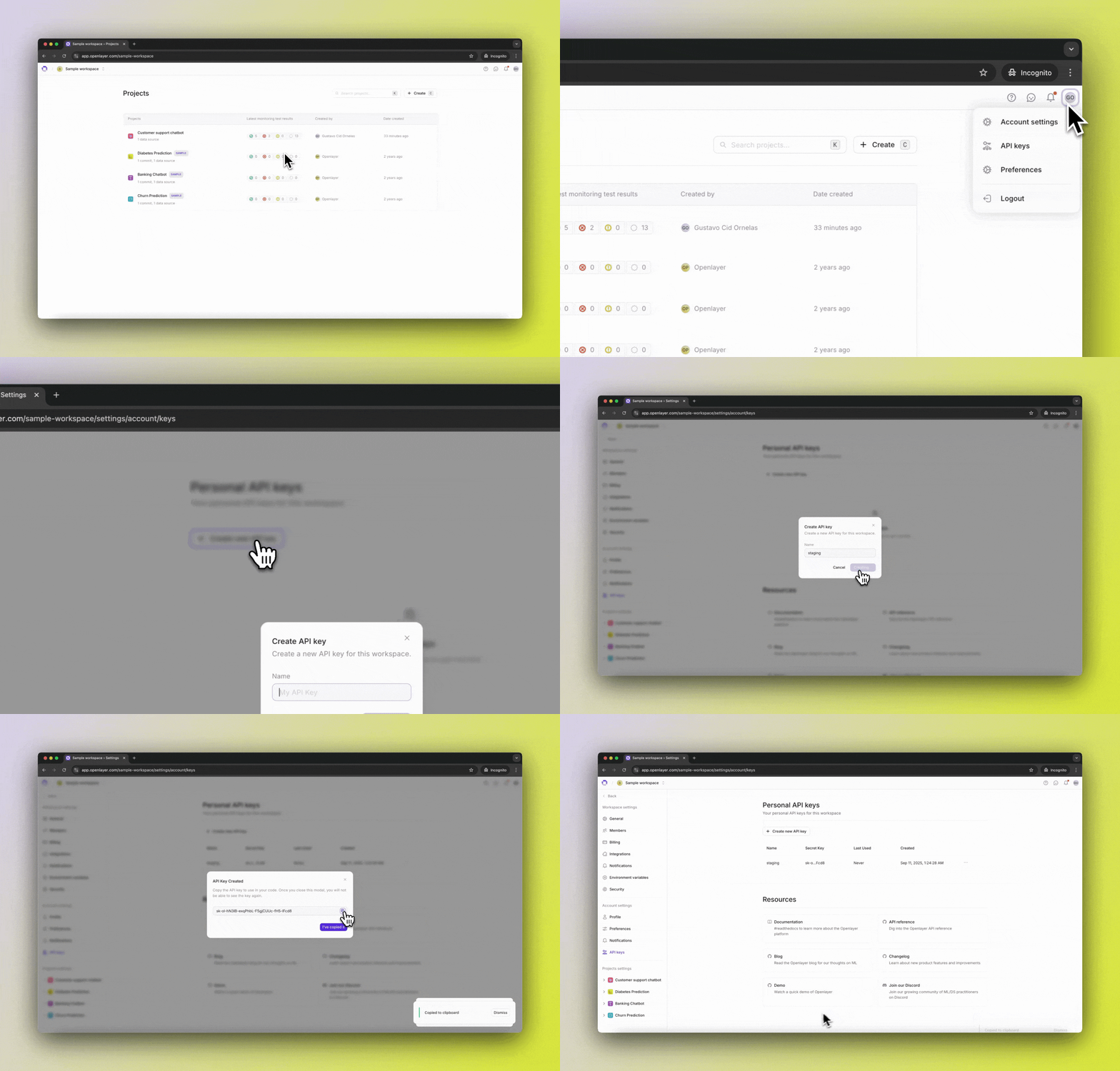
- In the Openlayer app, click your user icon in the top right corner.
- In the dropdown menu, click “API Keys”.
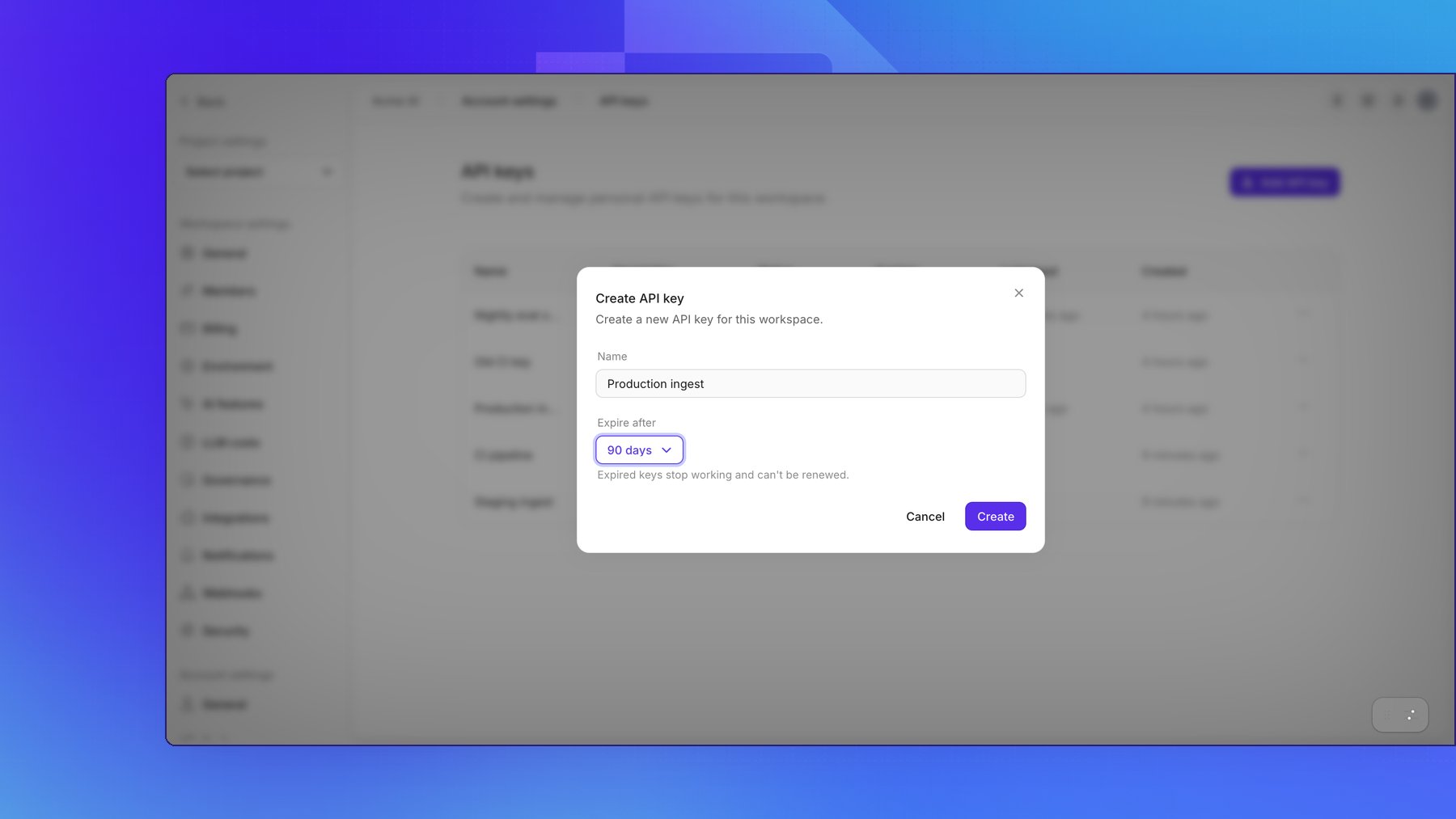
- To create a new API key, click Create API key, and enter a descriptive name.
- Optionally, choose when the key expires. See Expiry.
- Click Create to generate your key.
- Copy the key and store it securely — you will not be able to view it again.
Expiry
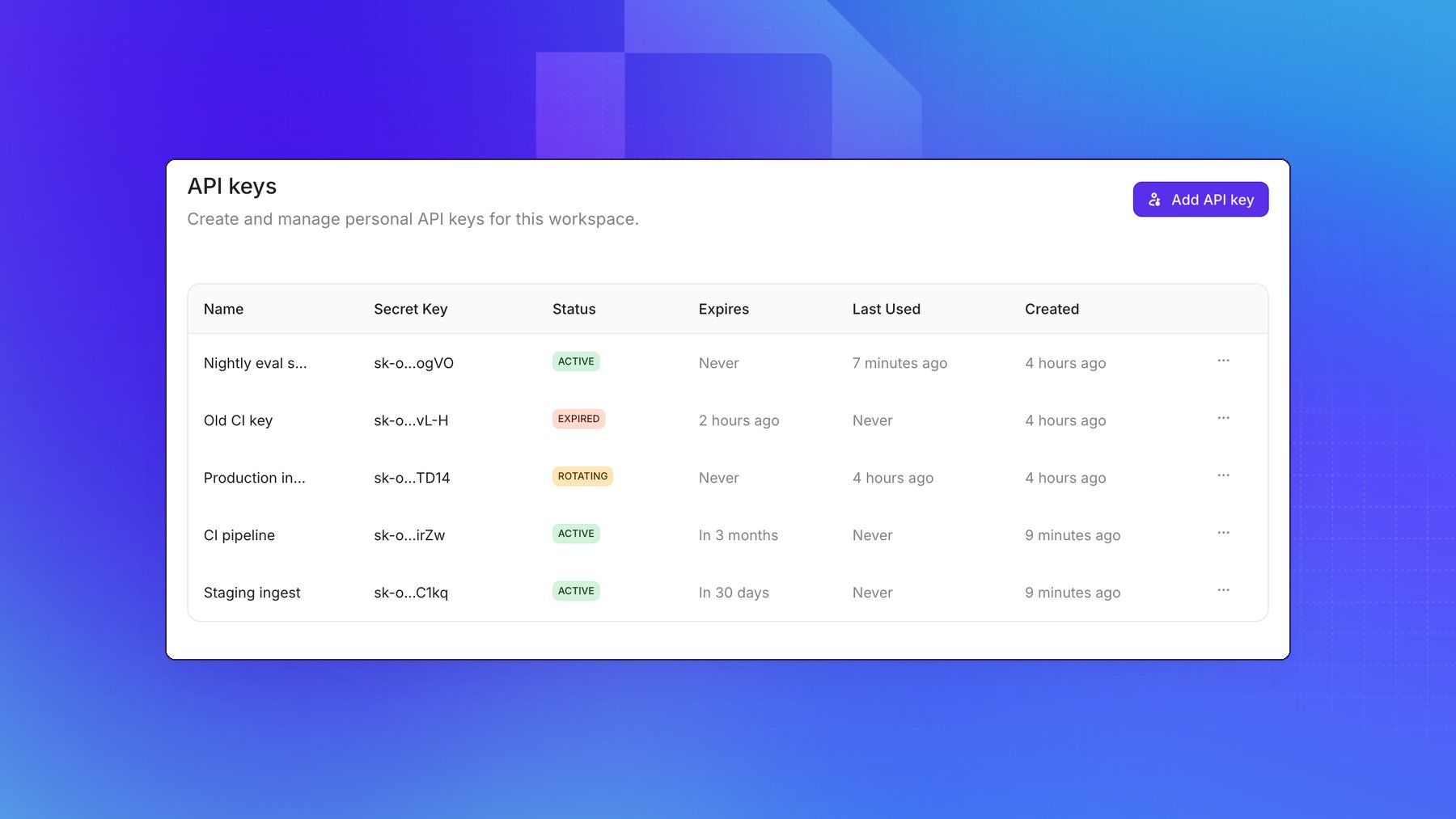
By default, API keys never expire. To limit how long a key works, choose a value in Expire after when you create it: 7, 30, 60, or 90 days, or 1 year. You can’t change the expiry of an existing key. To give a key a new expiry, rotate it and choose the new expiry in the same step. That way, extending a key’s life always issues a new secret. When a key expires, every request made with it fails with401 Unauthorized, and the key shows
as Expired. You cannot renew or rotate an expired key. Create a new key instead.
Keys created before expiry was available keep working exactly as before and never expire. To add
an expiry, rotate the key.
Rotation
Rotating a key replaces its secret and shows you the new one once. The key keeps its name and, unless you choose a new one, its expiry. You can keep the previous secret working for a grace period of up to 7 days, so you can update your applications without downtime. The grace period never extends past the key’s expiry. While the previous secret still works, the key shows as Rotating.- On the API keys page, open the menu on the key’s row and click Rotate now.
- Choose when the previous secret stops working: immediately, or after 1 hour, 24 hours, or 7 days.
- Optionally, choose a new expiry in Expire after. Keep leaves it unchanged.
- Click Rotate key, then copy the new secret. You will not be able to view it again.
Manage keys with the API
You can manage your API keys with the REST API and the SDKs, authenticating with an existing API key. Each call acts on your own keys in the workspace:- List API keys and
retrieve an API key to check each key’s
statusandexpiresAt. Secrets are never returned. - Create an API key, optionally with
expiresAt. The secret is in thesecretfield of the response. - Update an API key to rename it.
- Rotate an API key, optionally with
gracePeriodHoursand a newexpiresAt(nullfor never). The new secret is insecret. - Delete an API key. All of its secrets stop working immediately.
expiresAt, they get the same expiry as the key you’re using; a later expiry,
or null, is rejected. This stops a leaked key from being used to mint a permanent one.
Read-only credentials, such as a read-only connection from an MCP client, can
list and retrieve keys but cannot create, change, rotate, or delete them.
Automate rotation
Openlayer doesn’t rotate keys on a schedule for you, because it has no way to hand the new secret to your applications. Instead, run rotation from the place that stores your secrets, such as a scheduled job or your secret manager’s rotation hook:- Rotate the key with a grace period long enough to roll out the new secret.
- Store the new secret from the
secretfield of the response, and redeploy. - The previous secret stops working when the grace period ends.