


ConversationTranscript records with an app consented for Dataverse. This connector is separate: it
uses Microsoft Graph app-only (https://graph.microsoft.com/.default) with
AiEnterpriseInteraction.Read.All. Microsoft’s export API does not return Copilot Studio agent
interactions. Do not share one Entra app between the two connectors. The token audiences and consent
scopes are different, and the wrong app returns the wrong data.
To evaluate the conversations users have with your own bots in Teams rather than Copilot, use
Microsoft Teams bots. It needs no Copilot licenses.
All access is read-only. Openlayer reads interaction history and never
writes to, modifies, or deletes anything in your Microsoft 365 tenant.
How it works
Once connected, Openlayer reads each licensed user’s Copilot interaction history and turns the surfaces you enable into traces.- Seeds known surfaces. Microsoft 365 Copilot Chat, Copilot Web Chat, Copilot in Teams, Copilot in Word, Copilot in Excel, and Copilot Cowork appear under Surfaces. Every surface starts disabled, so nothing is ingested until you opt in.
- Leaves other apps off. Outlook, Loop, and PowerPoint are not covered. An
appClassOpenlayer does not recognize yet shows up after a sync and stays disabled. - Maps each surface to one project. Enabling a surface creates an Openlayer project named for that surface, or writes into a project and pipeline you already have. Enabled surfaces show the Microsoft 365 Copilot icon on the project and appear under configured integrations.
- Pulls on a schedule. Periodic sync brings in new interactions for users who hold the Microsoft Copilot with Graph-grounded chat service plan. You can also run a sync immediately, or backfill history for the surfaces you have enabled.
Prerequisites
- A Microsoft 365 tenant with users licensed for Microsoft 365 Copilot, including the Microsoft Copilot with Graph-grounded chat service plan. A tenant with no one on that plan connects, but the General tab shows a No Copilot licenses found warning and nothing imports until a user holds the plan.
- An Entra ID app registration with a client secret, the application permissions below, and admin consent.
- An Openlayer workspace where you are an admin. Connecting, enabling surfaces, managing user rules, and disconnecting are admin-only.
Register the Entra app
Register a dedicated app for this connector. Do not reuse the app you registered for Microsoft Copilot Studio.- In the Azure portal, go to Microsoft Entra ID → App registrations → New registration.
- Name the app (for example,
Openlayer Microsoft 365 Copilot) and register it. - Under Certificates & secrets, create a Client secret and copy its value. You cannot read it again later.
- Under API permissions → Add a permission → Microsoft Graph → Application permissions, add both permissions in the table below.
- Select Grant admin consent for the tenant.
Both are application permissions and both require admin consent. A delegated permission is not a
substitute. Openlayer requests a Graph app-only token (
https://graph.microsoft.com/.default).
Setup guide
Step 1: Open the integration
In Openlayer, go to Settings → Integrations and open Microsoft 365 Copilot.Step 2: Connect
Enter Tenant ID, Client ID, Client secret, and Microsoft cloud, then click Connect.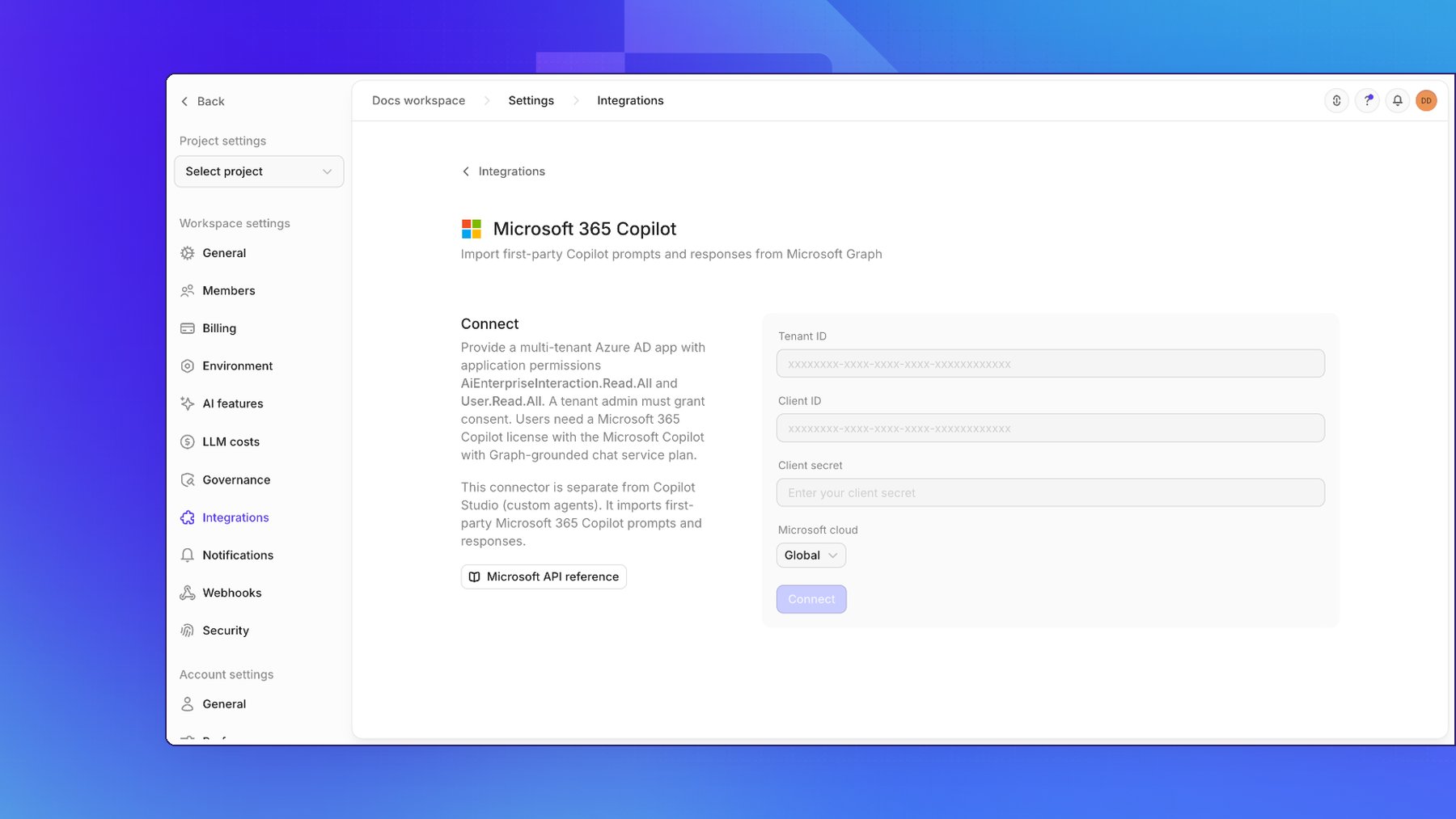
Step 3: Set the sync schedule
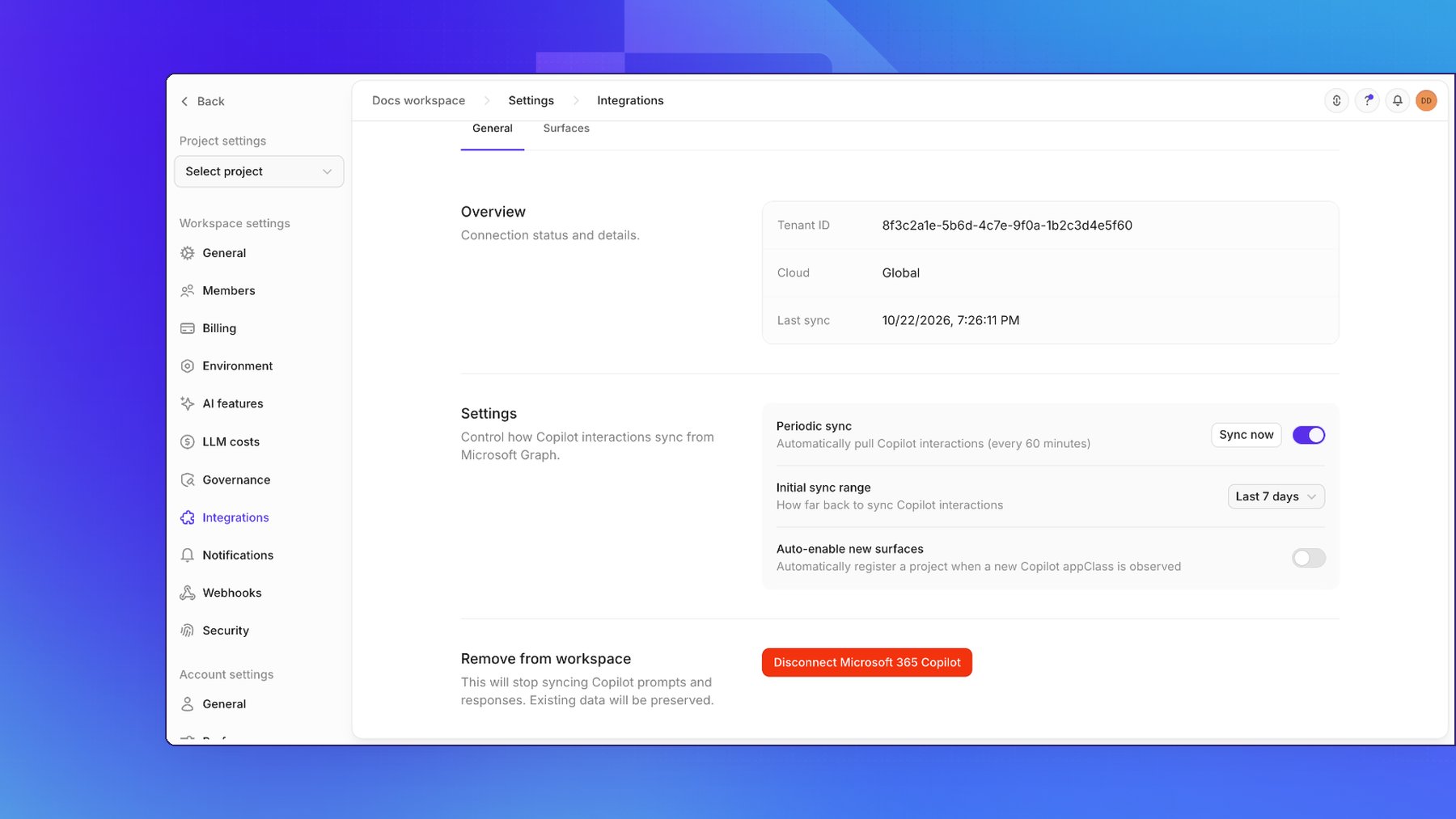
Open the General tab. Periodic sync pulls new interactions on the connection’s schedule. The interval shown is every 60 minutes by default. Openlayer checks for a due sync every 15 minutes, and the interval stays between 15 minutes and 24 hours. Turn periodic sync off to pause ingestion without disconnecting, or click Sync now to queue a sync immediately. Initial sync range is how far back the first sync reads:- Last 7 days — the default
- All available data
- Custom start date — a date you pick
Surfaces
Connecting registers the known surfaces under Configure surfaces. None of them ingest until you turn one on.
Outlook, Loop, and PowerPoint are not in this set. When a sync sees an
appClass outside it, that
row appears in the table under the raw appClass and stays disabled. A connection made before
a surface joined this set picks it up on its next sync, also disabled.
Turn on a surface’s Enabled switch and choose where its rows go:
- Create new project (the default) — Openlayer creates a project named
M365 Copilot - <surface name>and a data source for that surface - Map to existing project — pick an existing project and data source instead
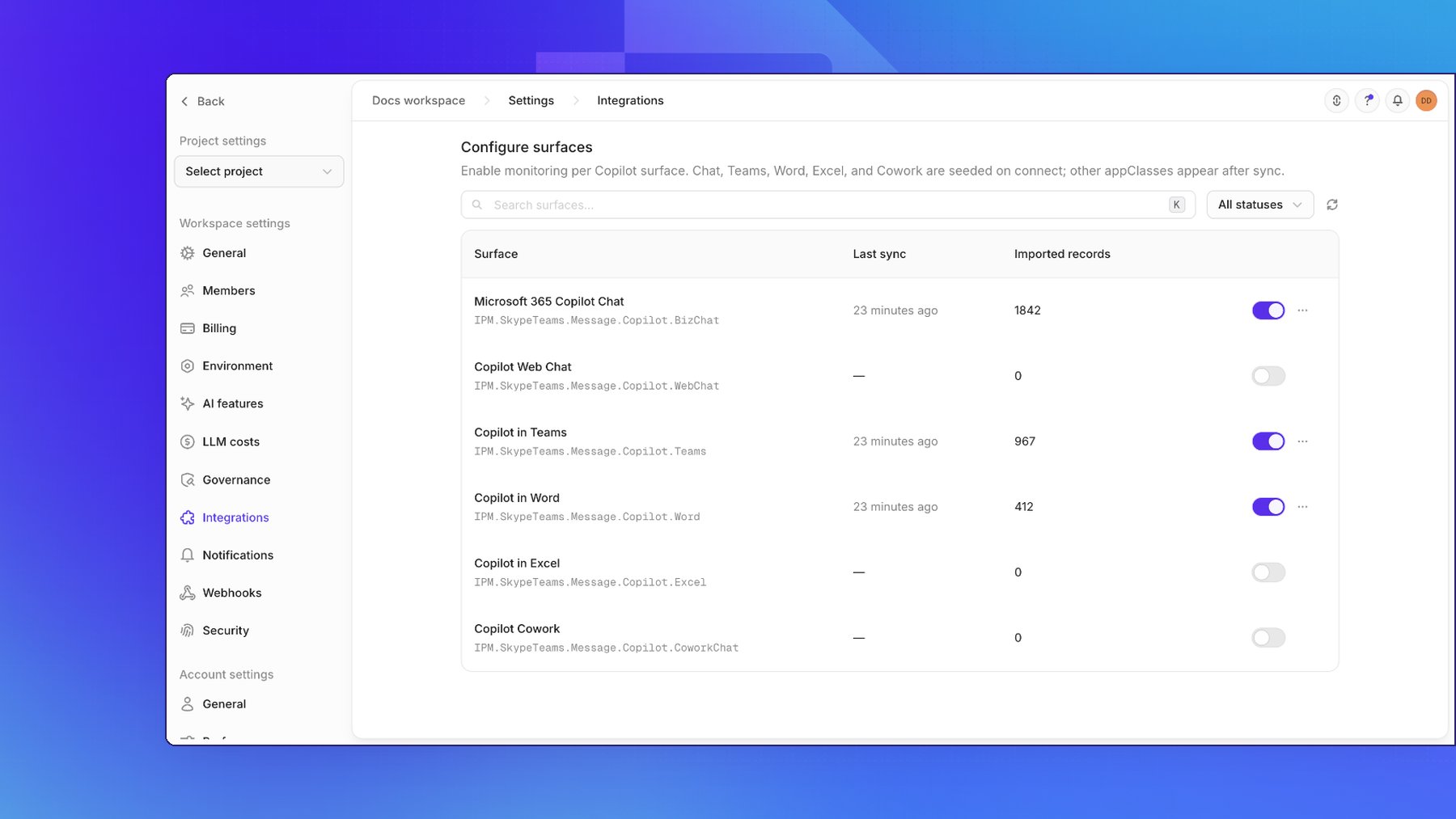
An enabled row’s menu has View project, Backfill, and Disable. Disabling a surface stops
new imports for it and keeps rows already written. Re-enabling it reuses its previous project and
pipeline if they still exist.
Backfill
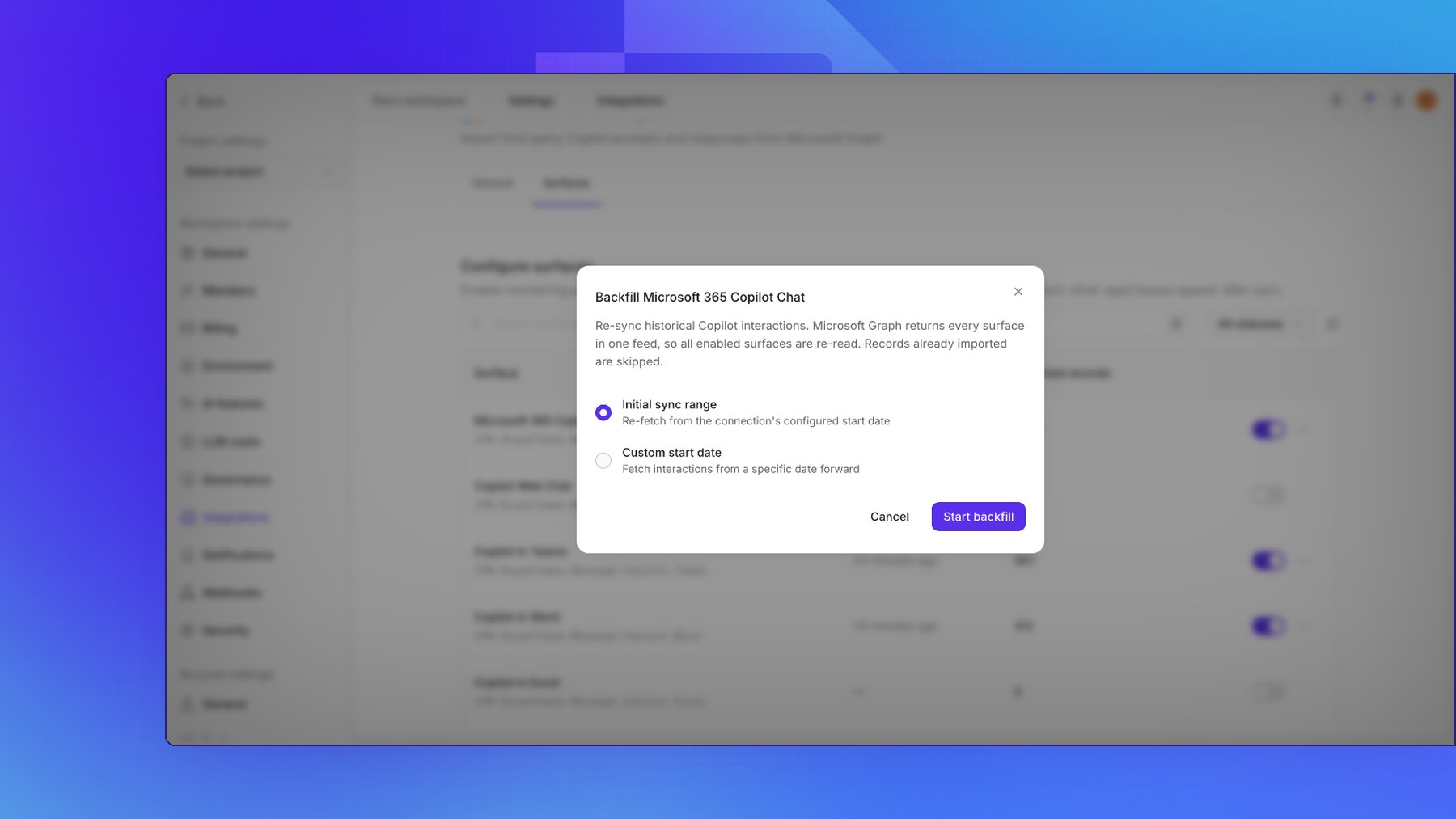
Backfill re-reads history for every enabled surface, not only the row you opened it from. Graph returns every Copilot app in one feed per user, so Openlayer rewinds the connection and reads that feed again. Rows already stored are skipped. Openlayer dedupes on the CopilotrequestId, so
running backfill again does not create duplicate records.
The dialog offers:
- Initial sync range — re-fetch from the start date on the General tab
- Custom start date — re-fetch from a date you pick
User rules
User rules, on the General tab, keep a user’s Copilot logs out of Openlayer or send them to a project where an access group limits who can read them. Only admins who can update the connection see the section, because the rules contain email addresses. Click Add rule and choose how the rule matches the user:
Matching is case-insensitive. Then choose what happens to that user’s logs:
- Ignore their logs — Openlayer does not read the user’s Copilot history, and nothing of theirs is stored.
- Route to another project — the user’s logs from every enabled surface go to a data source you choose in that project, instead of the surface projects.
Logs already ingested stay where they are. From the next sync, a routed user’s
logs are written to the routed data source, and the copies already in the
surface projects remain there.
Delete or replace a rule
Deleting a rule syncs the user’s new logs to the surface projects from the next sync. Logs the rule already decided stay out of them, even when a backfill reads them again:- After you delete an ignore rule, logs created while it existed are never imported. Logs from before the rule arrive with a backfill.
- After you delete a route rule, logs created before you deleted it go only to the routed data source. A backfill writes them there, not to the surface projects.
- Turn Periodic sync off, so no sync runs between the next two steps.
- Delete the rule.
- Add a rule with the same match type and value, and the new action or project.
- Turn Periodic sync back on.
What lands in Openlayer
Each CopilotrequestId becomes one inference row, and that requestId is the record id. Turns
that share a Copilot sessionId share one Openlayer session.
The user id is the person’s Entra object id (from.user.id). A response with no prompt — a Teams
meeting recap, for example — is attributed to the licensed user whose history was pulled, not to
anonymous.
When the interaction has the data, the trace is:
- A root user call named Microsoft 365 Copilot
- An optional retriever step named Referenced content, from contexts, links, and URL attachments
- A chat completion named for the Copilot app that answered (for example, Microsoft 365 Chat)
createdDateTime to the response’s.
Microsoft Graph does not return a model name, token counts, or cost, so those fields stay empty.
Referenced content and URLs can appear on the row’s context. Metadata keeps identifiers and types
only: not display names, mention text, or file names.
An edit to a prompt or response after that
requestId is already stored is
not ingested. The row stays as it was written.Evaluating the ingested data
Once traces are flowing, evaluate Microsoft 365 Copilot usage the same way you evaluate application traffic:- Create tests to score response quality, safety, or tone
- Detect PII or toxicity in prompts and replies
- Use governance frameworks to evidence AI-usage controls with real traffic